



Create a Python Application
To create/host a python app, please follow the steps below.
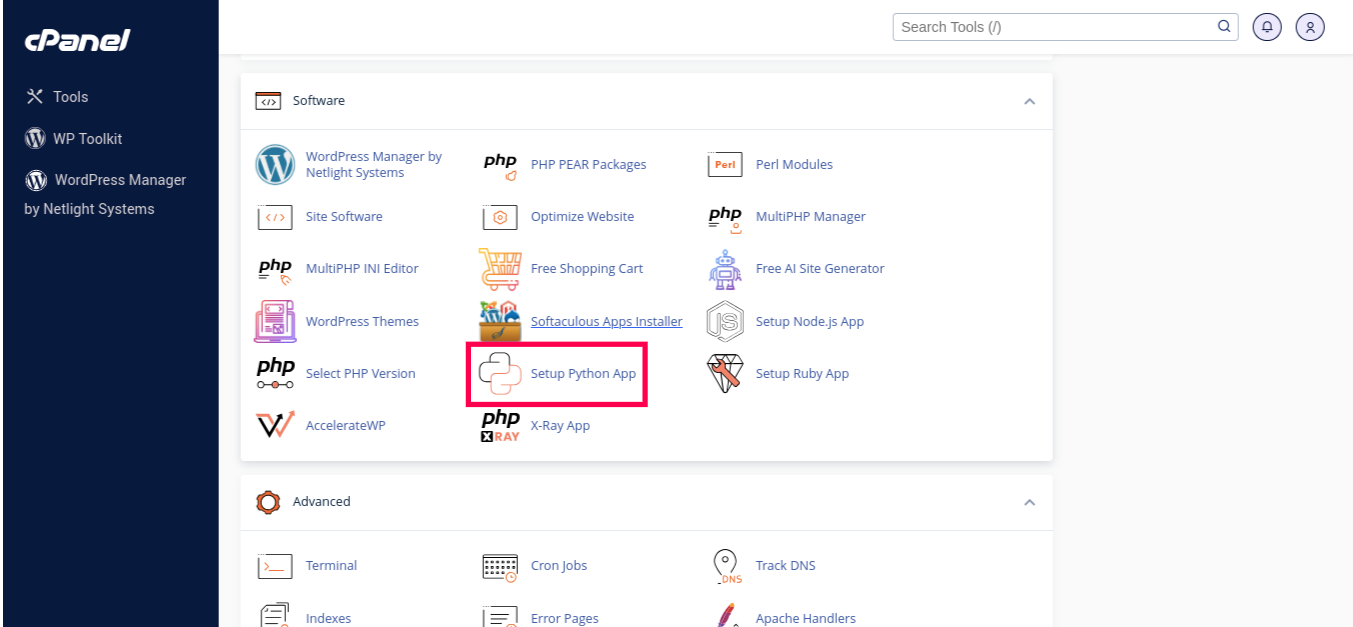
Navigate to the SOFTWARE section and select Setup Python App
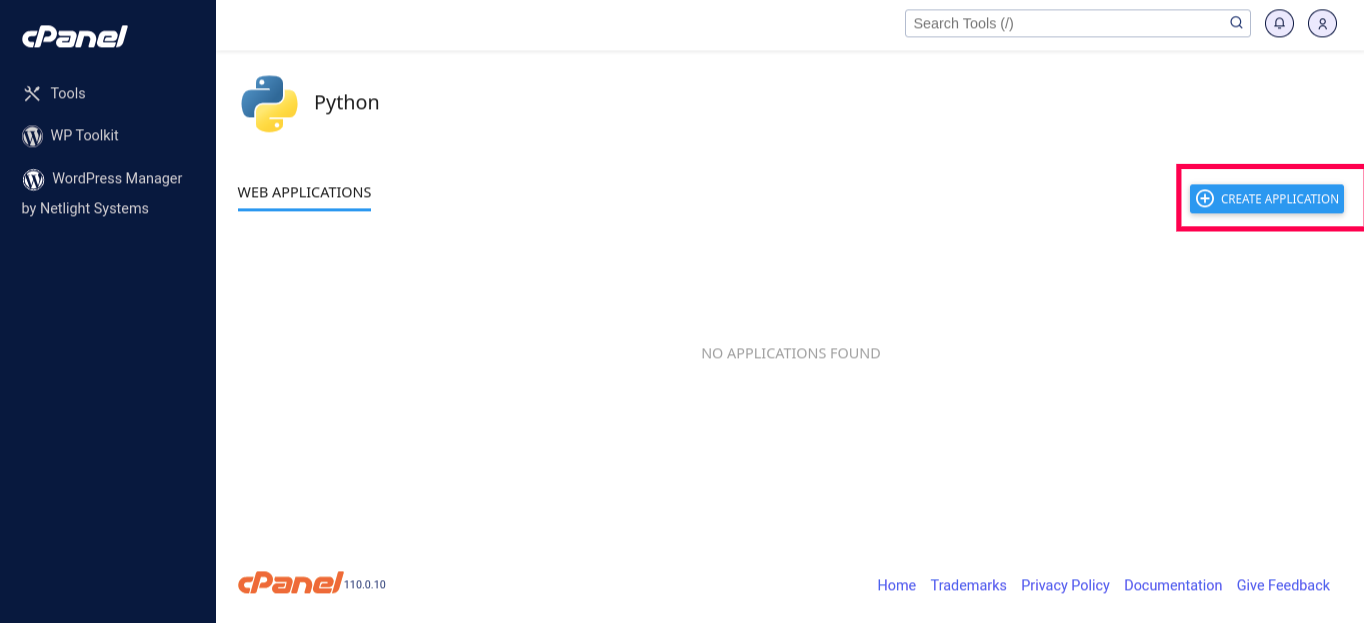
Next, click the CREATE APPLICATION button on the right side of the screen
Once you click on the CREATE APPLICATION button you would see a form like this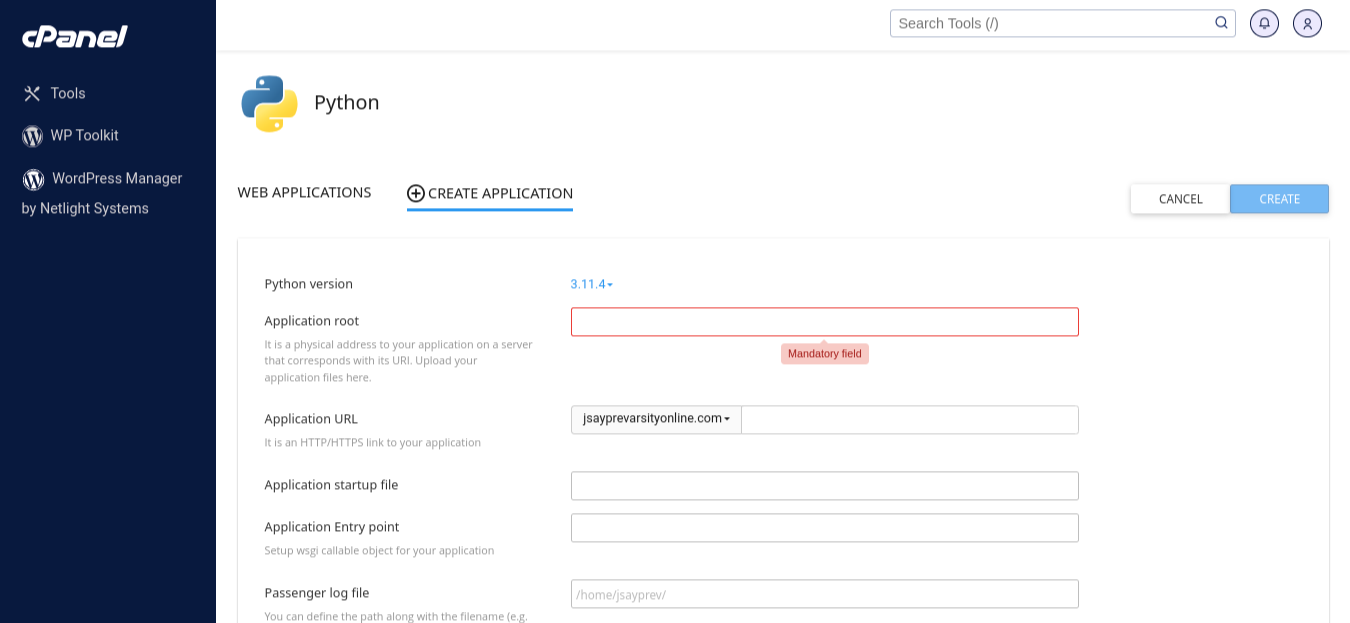
-
Select Python Version:
- Choose your preferred Python version, preferably the latest one.
-
Application Name:
- In the "Application root" form field, provide a name for your application.
-
Choose Domain/ Subdomain:
- In the "Application URL" section, select the domain or subdomain where you want to host the app.
Upload the Flask Application to cPanel
Navigate to theFILESsection in cPanel and selectFile Manager.
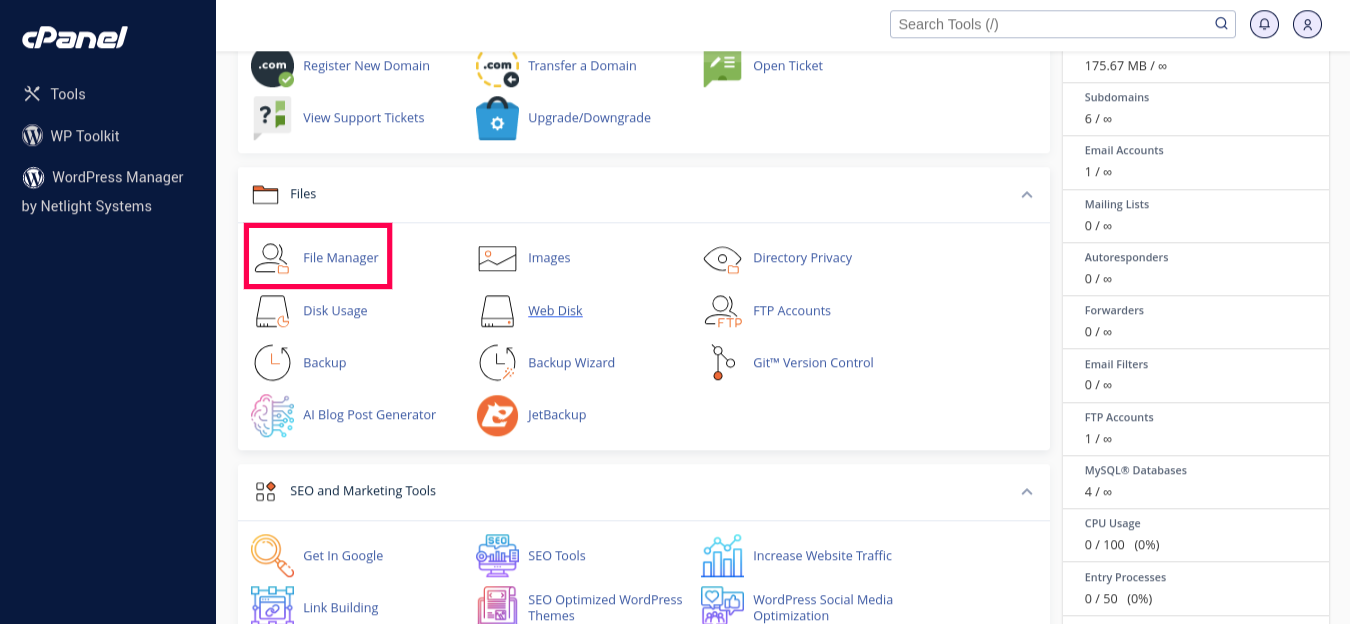
Next, zip your local project, upload it to the cPanel file manager, then unzip it on the server.


Step 4: Configuring our WSGI file
Open and edit the passenger_wsgi.py file that is automatically generated by the cPanel. You should see a starter WSGI config like in the image below.
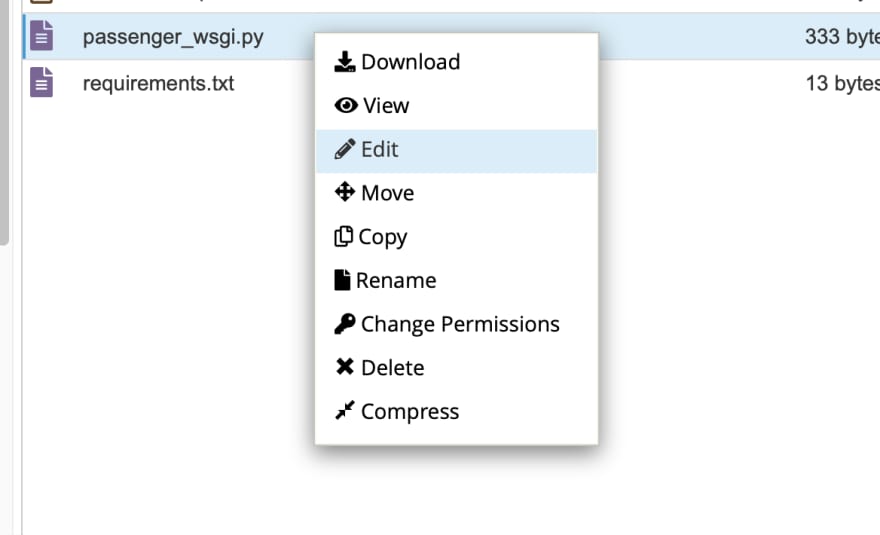

Next, replace all the content in the passenger_wsgi.py with the code below and save the file.
from app import app as application

Step 5: Install Project Requirements
Open the Python App page again and scroll down the page to the Configuration files section.
In the first form field, enter requirements.txt. Then, click the Add button to add the requirements for installation.

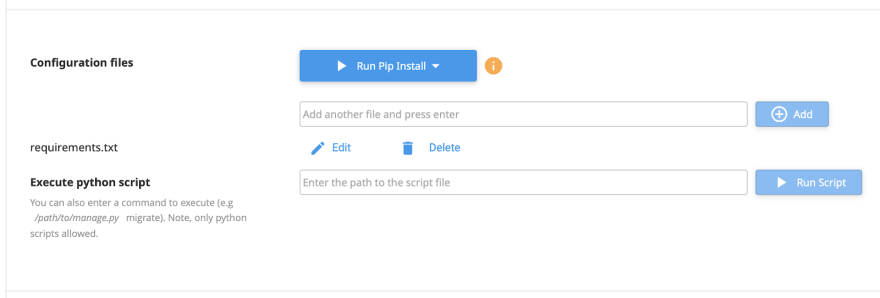
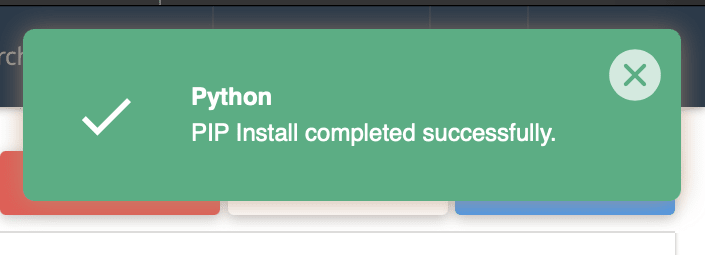
After doing this, notice that the Run Pip Install button is no longer disabled. Click on the button and select the requirements file you just set.

Step 6: Restart the Flask Application
Whenever you make changes to the web application, you have to restart the application to effect the changes. To do this, scroll up on the Python App page and locate the RESTART button, then click it.
Congratulations! You have successfully hosted a Flask application on Namecheap cPanel. It is accessible via the domain you linked to the app during its creation.